Wednesday, February 29, 2012

Salesforce’s Full Year Results

Its that time again when Marc Benioff comes out and tells us how great the revenue growth for Salesforce has been. It also means its time for me to pour over the numbers and see what else is happening.

To see how Salesforce fared last quarter, look here.

Full Year Results (2011)

Saesforce refer to this quarter as ‘Q4 2012’. The reason being that they end their financial year at the end of January. I am sure there is a good reason for this, I just do not know it.

For the details of the numbers, go here.

Unfortunately for Marc, Kris Kringle did not deliver the bumper end of year he needed to keep Salesforce out of the red and the business made a $11.6m loss on the back of $2.3b in revenue (about 0.5% loss). Here is the graph.

image

It seems the dam is still leaking but it is not getting any worse. The loss for the last three quarters has been around $4m and appears to be constant. In other words, while revenues are growing rapidly, the expenses of the business are keeping pace (but no longer overtaking). When one considers that in the two quarters prior to these profits were eroding at $10m per quarter, this is an improvement, although still no an ideal position to be in, in my opinion.

Earnings Conference Call

Listening to the conference call we heard:

  • David Hadlick, Head of Investor Relations
    • ‘Outstanding’ quarter
  • Marc Benioff
    • ‘Gorgeous finish’
    • Revenue growth
    • Cashflow increase
    • 2500 additional employees
    • Lots of large transactions this quarter
    • Raised guidance, $3b revenue this year
    • A few well known names examples of new customers
    • Second largest market share, taken from SAP, for CRM
    • 45 billion transactions in the cloud
  • Graham Smith
    • ‘Outstanding fourth quarter’
    • non-sales cloud business more than 40% of business
    • Some non-GAAP statistics
    • Cashflow up
    • ‘Great year with huge wins’
  • Questions
    • 9 figure deal with an ‘Illinois-based insurance company’
    • Benioff: ‘committed to increase our margins’ (but not right now)
    • Benioff: Wants deals of all sizes
    • Benioff: Focussed on current markets, not emerging markets

Obviously, everyone, including the analysts love the results (despite their share transactions suggesting otherwise). Other than the report of non-GAAP EPS and the great ‘margin vs growth’ question, there was barely a mention of profit but the constant drone of revenue and non-GAAP statistics. Benioff, again, affirmed that he is laser-focussed on growth and, while making a profit is a good idea, it is not an idea to act on right now.

The idea of consolidating existing markets rather than invest in emerging ones is an interesting one so it will be interesting to see how that turns out. Given China’s growth and ever-increasing prominence on the world’s stage, the Salesforce play may win the battle but I am not sure it will win the war.

One thing that was conspicuous in its absence was the mention of Microsoft. While Marc was happy to put the knife in SAP and Oracle and the wisdom of their acquisitions. Either he no longer considers Microsoft a threat or he sees the others as the ‘low hanging fruit’ in terms of spinning a marketing pitch. Other than dismissing Microsoft’s focus on China, Dynamics CRM went unscathed.

Conclusions

I will hold off looking at the subscriptions until post-Convergence as there is the chance Microsoft will actually provide some subscription numbers. My previous prediction of a full year loss was realised.

Based on the results and Salesforce’s reaction to it, the good ship Salesforce continues on its course. The leaks have been patched and the rate of sinking has been held at a constant. The only shift seems to be the competitive focus, which are the incumbents SAP and Oracle, rather than the CRM-upstart Microsoft.

The idea of ‘Minneapolis over Mumbai’ is an interesting one but, again, like their profitability, not sustainable in the longer term. Salesforce must eventually change course or they will hit an iceberg.

Tuesday, February 14, 2012

What Are The Directors Thinking? Microsoft vs Salesforce.com

What if we knew what the directors of public companies i.e. ones on the stock exchange, really thought about the fortunes of their company? Sure they often release press statements saying how excited they are about the future and how great their company’s products are but how can we work out what is passion and what is spin?

One tool to do this is their insider trading. We often think of the term ‘insider trading’ as a bad one or something illegal. In fact all it means is that someone with better knowledge than the market is buying or selling shares. In the case of the executives and directors of companies it is inevitable that they have knowledge of their companies which would be detrimental for them to reveal publicly. Yet, it is desirable for them to engage in the buying and selling of shares in their company. After all, they are often own significant fractions of the companies they work for and it would be difficult to restrict them in buying or selling this ownership (which is what shares of a company are: packets of ownership).

To get around this problem of people with better knowledge of the market needing to be able to buy and sell shares, the rule is simply this: if they trade in share of a company where they are a director or executive, they must publicly declare the trade to the market. Unfortunately they are under no obligation to state why they engaged in that transaction.

So Why Do People Buy and Sell Shares?

My thoughts on this are strongly influenced by two writers: Warren Buffett (through his Berkshire Hathaway annual letters) and Benjamin Graham (through his book ‘The Intelligent Investor’). Given Graham was the lecturer of Buffett, the two are closely aligned on this subject. Essentially, the reasons people buy or sell shares are pretty simple.

People buy shares because:

  • They think the company is a good investment e.g. the share price will go up faster than the other companies they could buy shares in or the dividends the share pays (think of this as ‘interest’) is better than what they could get elsewhere

People sell shares because:

  • They think the company is a poor investment e.g. the share price will go down or not increase as fast as the price of other companies or the dividends the share pays are not as good as what they could get elsewhere
  • They need the money

In short, if ‘insiders’ are buying this is an indication of a good investment. If ‘insiders’ are selling it MAY indicate a bad investment.

Using this as our measuring stick, we can see if the statements made by the leaders of Microsoft and salesforce.com are in alignment with their share trades.

Round One: Microsoft Sells

For this analysis I have used the insider trades for 2011. The reason for this specific year is that it was easy to find the numbers and pump them into Excel by using Yahoo finance. Here is the link: http://finance.yahoo.com/q/it?s=MSFT+Insider+Transactions. For salesforce.com you get the same URL and replace ‘MSFT’ with ‘CRM’.

If you want more years, another great source is insidermonkey.com.

The only downside with using the Yahoo finance table is that they have put footnote references above the total dollar value where the trades were done across a number of share prices. The upshot of this is if the table shows ‘2,253,0002‘ this pastes into Excel as ‘2,253,002’. Given the large numbers at play I have not worried too much about it as this will not have a significant effect on the results.


GATES WILLIAM H III

SINOFSKY STEVEN J

BRUMMEL LISA E

MUNDIE CRAIG J

SMITH BRADFORD L

TURNER BRIAN KEVIN

DELBENE KURT D

NADELLA SATYA

BROD FRANK H

KLEIN PETER S

PANKE HELMUT

2011


Qtr1

557,750,000

46,523,784

1,137,288

25,666,868

6,968,648


3,739,580


11,269

Qtr2

502,449,999


3,261,174


16,822


11,263

Qtr3

554,500,000

1,665,847

24,675,198

1,401,692

1,479,759

5,645,006

918,734

1,602,411

1,094,876

642,329

11,249

Qtr4

537,800,000

29,770,270


1,082,400


210,966


11,265

Grand Total

2,152,499,999

77,959,901

29,073,660

27,068,560

8,448,407

6,727,406

4,658,314

1,813,377

1,111,698

642,329

45,046

This shows the $ value of shares sold, each quarter, of directors and executive officers.

So who are these people?:

  • William H Gates III: Otherwise known as Bill Gates, Chairman of the Board
  • Helmut Panke: member of the Board of Directors
  • Steven J Sinofsky: President, Windows and Windows Live Division
  • Lisa E Brummel: Chief People Officer
  • Craig J Mundie: Chief Research and Strategy Officer
  • Bradford L Smith: General Counsel and Executive vice President, Legal and Corporate Affairs
  • Brian Kevin Turner: COO
  • Kurt D Delbene: President, Microsoft Office Division
  • Satya Nadella: President, Server and Tools Business
  • Frank H Brod: Corporate Vice President, Finance and Administration and Chief Accounting Office
  • Peter S Klein: CFO

We have two members of the board (out of nine) and nine executives.

The top four sellers (Bill Gates, Steven Sinofsky, Lisa Brummel and Craig Mundie) sold a significant number of shares, in terms of dollar value in 2011 (accounting for 99% of the shares sold).

The reason Bill Gates sells his shares is well documented. The half a billion dollars per quarter goes to fund the Bill and Melinda Gates foundation.

Steven Sinofsky’s reasons are unknown but, given the rise of the iPad, perhaps he though it was time to cash in some of his stock and diversify into Apple.

Lisa Brummel did the majority of her selling in the third quarter of 2011 and runs Human Resources at Microsoft. It is not clear why she needed $29m in 2011 an it is unlikely it was to cover a few bills.

Craig Mundie also sold a similar amount to Lisa. His reasons are also unclear.

A special mention should also go to Steve Ballmer, who, at the end of 2010, sold about $2b in shares. While Steve insists he is fully behind Microsoft and its products, it is clear he feels his personal money (or at least $2b of it) is better invested elsewhere.

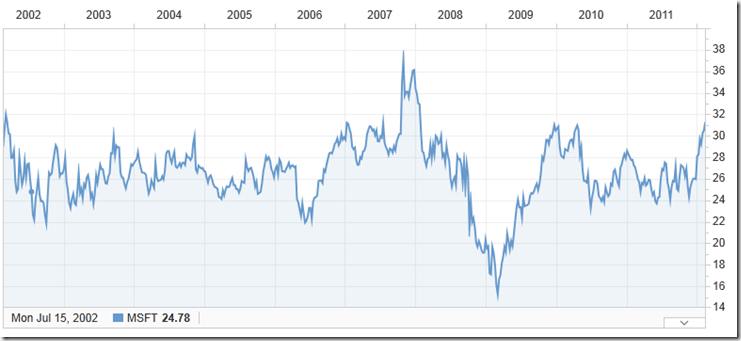
While this does not look good, there is one factor which could explain the sales and that is Bill Gates continuous sales of lots of shares. Here is the Microsoft stock price for the last ten years:
image

This is one of the least interesting share graphs I have ever seen. The Microsoft price never varies much from $28 per share (except around 2008 where there was a small blip). If you have someone in the market with a large supply compared to demand, it is going to drive the price down. The fact that Microsoft has maintained its price, despite Bill’s constant stock selling it a testament to the robust nature of the organisation. However, if I also have a large amount of stock, I can understand that I may feel that my money could be growing faster somewhere else.

Round Two: Salesforce Sells

Here it is.


RAMSEY CRAIG

SMITH GRAHAM

HARRIS PARKER

VAN VEENENDAAL FRANK

HU GEORGE

KOPLOW HILARIE A.

TOMLINSON LAWRENCE

CONWAY CRAIG

SCLAVOS STRATTON D

YOUNG SHIRLEY

SCHELLHASE DAVID

2011


Qtr1

4,394,985

660,880

4,793,610

1,875,759

79,195

95,400

275,770

Qtr2

132,410,004

5,483,121

273,121

4,173,463

3,083,660

1,251,134

1,862,415

316,566

446,940

520,590

132,813

Qtr3

38,055,634

50,723

62,210

131,675

1,283,296

1,509,750

319,852

178,590


Qtr4

23,537,987

60,260,057

120,160

1,041,174

991,474

268,237

170,190


Grand Total

132,410,004

71,471,727

61,244,781

9,149,443

6,132,268

3,605,099

3,372,165

1,000,055

795,720

520,590

408,583

In this case we have:

  • Craig Ramsey: member of the Board of Directors
  • Lawrence Tomlinson: member of the Board of Directors
  • Craig Conway: member of the Board of Directors
  • Stratton D Sclavos: member of the Board of Directors
  • Shirley Young: member of the Board of Directors
  • Graham Smith: Executive Vice President and CFO
  • Parker Harris: Executive Vice President, Technology
  • Frank Van Veenendaal: President, Worldwide Sales and Services
  • George Hu: COO
  • Hilarie A. Koplow: Executive Vice President, Worldwide Sales
  • David Schellhase: formerly Executive Vice President, Legal (now at Groupon)

Here we have five members of the board (out of nine) and six officers. I have an issue with over half the board (i.e. those responsible for the strategic direction and financial health of an organisation) selling out of the company they are directing.

In the case of salesforce we need to go to the top seven (Craig Ramsey, Graham Smith, Parker Harris, Frank Van Veenendaal, George Hu, Hilarie A. Koplow, Lawrence Tomlinson) to cover 99% of sales.

Here is the much more interesting ten year graph for salesforce.

image

A few things to note. Firstly, we do not have the full ten years because salesforce.com has not been publicly traded for the ten years. Also, other than the same blip that temporarily sank Microsoft’s price near the end of 2008, the salesforce share price continued to rise until 2011 when it has flattened off a little.

I can find no public comments by the insiders as to why they sold their shares in 2011.

As to the behaviour exhibited by both sets of insiders, one thing you can see is that while Microsoft insiders sold sporadically (only four out of the eleven selling in three or more quarters), the salesforce insiders were more frequent in their selling (seven out of eleven sold in three or more quarters).

Graham Smith, the CFO of salesforce I find the most interesting.

You might remember back in September 2011 I summarised the transcript of the Q2 results for salesforce(http://leontribe.blogspot.com.au/2011/09/does-salesforce-have-their-head-in.html). The transcript was from August 18, 2011.

Graham Smith featured prominently in that call describing the salesforce results as an ‘exceptionally strong quarter’.

So, if the results of salesforce were so strong, why was Graham selling close to $10m in stock prior to the results (or thereabouts) and a little over $60m in shares afterwards? I do not know the answers and, maybe, Graham does need the pocket change but the timing is dreadful in terms of the mixed message it sends.

The name that is missing from this is our good friend Marc Benioff who is both a director, being the chairman of the board and an officer, being the CEO. In Australia, this situation of being a director and officer does occur but it is not as common as the USA. The reason being it is seen as a potential conflict of interest. A simple example is that of compensation. The board generally sets the compensation levels for executive officers. If the people deciding the compensation are the ones receiving it, there are clear terms of reference issues. I have no idea whether this specific example is an issue at salesforce, I simply cite it as an example.

So did Marc sell shares in 2011? No he did not. However, he had been busy selling shares up to the start of 2011, despite the stellar performance of the stock over the years. Back in 2006, Marc held 22.8 million shares (http://accounting.smartpros.com/x53957.xml). By the end of 2010 he had sold down to the last ten million and then stopped. Here is the video where he is asked why he sells so much stock and he deftly avoids answering the question completely (around the eight minute mark http://allthingsd.com/20110304/video-marc-benioff-answers-his-critics-with-a-little-help-from-jim-cramer/)

The fact is despite his exuberance for the salesforce model and despite the stellar performance of the stock, Marc was, until 2011, regularly selling his ownership of the company. Either he had doubts about his own hype, he had big debts or he knew of a better investment than one which had increased its share price five-fold in five years (around a 38% annual return).

Microsoft and Salesforce Buys

Not one officer or director at either Microsoft or salesforce bought their own stock in 2011. With the steady price of Microsoft and the flattened performance of salesforce it is understandable but still a little surprising.

Conclusions

Perhaps my biases are shining through loud and clear but I understand why Microsoft insiders would not be overly impressed with their Microsoft stock. The price does not move and, with Bill generating a couple of billion a year through the divestment of Microsoft ownership, the hill the stock has to climb is just a little bit steeper.

As for salesforce, I am stumped. Taking the CFO and Marc as the champions of the company, both consider salesforce to be strategically and financially sound. The stock market agrees and yet they, and many of the board, are offloading ownership on a regular basis.

Perhaps, like me, the salesforce insiders feel the stock price is overvalued. Therefore, while they are confident of the future, they are not confident in the share price. If so, they would do well to communicate this to the market rather than let others hold on to their dreams while the insiders know a nightmare is coming, but get rich before it arrives.

Perhaps I ask too much of company executives in asking they reveal their motives as well as their actions.

Monday, February 6, 2012

Book Review: Packt Microsoft Dynamics CRM 2011 New Features

Introduction and Disclaimer

The folks at Packt asked me to review one of their online books in exchange for a free download of it. Seemed like a fair exchange to me so here it is. If you are interested in buying it (a judgment you may reserve until after you have read the review), here is the link.

image

Jim Wang and Darren Liu are both Dynamics CRM MVPs so they know their stuff. As far as I can recall, I have never met them but I possibly will at summit in a couple of week’s time (If I have met either of you, my apologies for a lousy memory). As with Matt Wittemann’s book, there may be an Alaskan Ale in it for a complimentary review.

The Packt model is an interesting one. They are an online publishing house who approach subject matter experts and offer them an advance and a good commission for writing a book for them. They have approached me a couple of times but I have turned them down on both occasions simply due to a lack of time. Given the movement towards e-readers and related devices I believe it is a  business model most publishers will eventually adopt.

Overview and Structure of the Book

The first thing you will probably notice is the size of the document. This is no brief summary of the new features. This is over 250 pages covering what has changed since Dynamics CRM 4 with a full index in the back. The structure of the book is:

  • The usual preliminary bits (About the Authors, Acknowledgement, Table of Contents etc.)
  • Chapter 1: Setting Up The Development Workspace
  • Chapter 2: System Design and Configuration
  • Chapter 3: Data Import
  • Chapter 4: Client-Side Programming
  • Chapter 5: Server-Side Programming
  • Chapter 6: SharePoint Integration
  • Chapter 7: Charts and Dashboards
  • Chapter 8: Extending Microsoft Dynamics CRM 2011 in the Cloud
  • Chapter 9: Sitemap and Ribbon Customization
  • Chapter 10: Packaging It Up
  • Index

I like this structure as it parallels the steps one would take in setting up a CRM system. The titles are also plain English e.g. ‘Client-Side Programming’ making it easier to know where to go. To add a bit of a flow to the book, they also put it in the context of a HR system designed to manage compensation for an airline company’s flights.

What is missing are the changes from the major update in November. You will not see, for example, mention of the Activity Feed. That being said, the release of CRM 2011 was the last ‘old school’ release for Dynamics CRM. What I mean by this is Microsoft went from a multi-year cycle for version releases of the product to a twice-yearly release cycle in line with cloud software makers such as Salesforce. The upshot of this is, while there were massive changes between CRM 4 and CRM 2011 (worthy of a 250+ page book), future changes are likely to be more incremental, in line with the release cycle and therefore the book will stay reasonably relevant, despite the new ‘cadence’ and occasional major feature release.

It should also be noted that the authors, as they acknowledge at the start of the book, assume the audience is familiar with Dynamics CRM 4 and are seeking to understand what has changed in 2011. There is no walkthrough of what is the difference between an account, contact lead and opportunity, for example.

Finally, I will tip my hat off to Jim Wang for mentioning Jim Glass in his acknowledgements. Jim Glass was, until recently, the Dynamics CRM Community Leader at Microsoft (he is now at Amazon). To translate his title, Jim Glass was the strongest advocate within Microsoft for the CRM MVPs and their importance. It was JaAG (as Jim is known) who would rally up the speakers when the MVP Summit was in town and would fight for us to get included on feature decisions when they were still in the planning stages. In other words, Jim Glass was the CRM MVP’s MVP within Microsoft and, without exception, he is held in the highest possible regard for his dedication to that role. The shoes he has left to fill have their own building number designation on the Microsoft campus.

Chapter 1: Setting Up The Development Workspace

This chapter goes through setting up a virtual machine running Dynamics CRM 2011 and SharePoint 2010. They even talk about virtualization options beyond Hyper-V, mentioning my good friend VirtualBox.

They also mention setting up Visual Studio for the coding to come in later chapters.

The delivery is pretty much a screen walkthrough for setting up CRM so nothing much to report here.

Chapter 2: System Design and Configuration

Here the compensation system gets introduced and explained. The chapter then goes on to explain how Dynamics CRM can be configured to meet this requirement.

The chapter gives an outline for a basic functional and technical specification, highlighting the specific areas of the product which can be used to meet the functional needs of the business.

The chapter talks very much in the context of the system design rather than giving a laundry list of new features. For example, the ability to assign ownership to teams is mentioned for the design but not called out as a major new feature. It is up to the reader to review the proposed design, reflect on how it could be handled in CRM 4 and then appreciate what has changed. While this makes for an interesting read, it does sacrifice the ability to look up specific topics. Using team ownership as an example again, there is no clear reference in the index on where one would find information on this.

What this means is the book lends itself to system architects with a good understanding of the configuration options of the system but not so much to people who are new to either system.

Chapter 3: Data Import

This is a great chapter on the awesome work Microsoft has done on improving the Import Wizard. It covers all the practical features of the new tool e.g. ability to import attachments, import multiple entity records at once, update data etc.

If you have the need to import records into Dynamics CRM 2011 and not sure where to start, this chapter alone is worth the ticket price.

Chapter 4: Client-Side Programming

It is a tall order to try and squeeze everything to do with client-side programming into one chapter. We have the new object model, the web resource container, Silverlight, REST and SOAP etc. Entire books have been written on the development side of Dynamics CRM alone so it is no surprise this chapter offers a high level summary. There are a few code examples for REST endpoints but, otherwise, this is a high level review for those already familiar with the CRM 4 terrain.

Chapter 5: Server-Side Programming

Again, this is a big topic for one chapter. To raise the bar, this chapter also includes workflows and dialogs. If you are not a developer, apart from the information on what Dynamics CRM 2011 call ‘processes’ i.e. workflows and dialogs, the chapter will have limited value. For the developers, the chapter describe the landscape for server-side coding with CRM 2011 and gives an example of plugin code. As the chapter correctly states, for the full details of how to program with Dynamics CRM 2011, the best resource is the SDK.

Chapter 6: SharePoint Integration

This is probably one of the best summaries I have seen of the integration between SharePoint and Dynamics CRM 2011 that is available out of the box. For example, it talks about the differences between what can be done with SharePoint 2007, compared to SharePoint 2010. As with the data import chapter, if you have a need to understand the out-of-the-box integration between CRM 2011 and SharePoint this chapter alone is good value.

Chapter 7: Charts and Dashboards

Another good high-level review to introduce the reader to these completely new features. One nice touch is the small section mentioning how you can extend the charting through xml editing. This chapter as with others, is designed to give the reader a feel for the feature but is not designed to be a complete walkthrough. Rather, it is expected the reader, now familiar with the high-level ideas, will explore CRM 2011 in their own time to understand the more intimate details.

Chapter 8: Extending Microsoft Dynamics CRM 2011 in the Cloud

A great introduction to how Dynamics CRM 2011 plays nicely with Azure (using the free customer portal add-on to create a cloud web site for CRM) and Office 365 (to provide an Exchange server for the email router to connect to). In this case the ‘case study’ approach works well as many readers are unfamiliar with Azure and Office 365 and this format gives a solid, practical example of how they can be used.

Chapter 9: Sitemap and Ribbon Customization

The way someone edits the sitemap and ribbon has completely changed in Dynamics CRM 2011 and it is now, arguably, more complex than it was previously. To cater for this, the chapter moves gently through the process and provides a lot of code examples, especially for the ribbon. For someone who needs their hand holding through the process of adding a button to the ribbon, this is a great chapter.

Chapter 10: Packaging It Up

This chapter is dedicated to the new feature called solutions: the ability to ‘package’ customisations for transfer into other systems. It covers the important aspects of this new feature and gives a great summary of ‘managed’ and ‘unmanaged’ solutions and their use. If you are looking for best practice with solutions (as many of us are) there is not a lot of detail but it is a good introduction to their function in developing CRM modules.

Conclusions

This book is not a comprehensive guide to the features of Dynamics CRM 2011. Rather, it is an introduction to some of the new features of the product, compared to CRM 4. I say some of the new features because, by virtue of the authors writing in the style of a pseudo case study, some features have fallen through the cracks e.g. goals. While this is the case, the aspects of the product they do cover are covered very well. What I mean by this is their high-level summaries of large topics, such as customization, cover the essential elements and their treatment of smaller topics, such as data import and SharePoint integration are some of the best I have seen.

While there is not as much bang for buck as, say, Matt Wittemann’s book, the CRM 4 developer or administrator will not have to filter out a rehash of the version 4 features as this book assumes that knowledge. Where I see this book working is as a companion to one of those larger 2011 administrator guides. While those volumes allow the reader to drill down into a specific topic, this book, uniquely, gives a much greater context to the features in question, providing a practical example as an integral part of the narrative.

Packt do provide chapter one as a sample chapter, so feel free to review it and see if it is for you.

Friday, January 27, 2012

Setting Multi-Level Categories Against a Record Codelessly

This is a bit of a variation on a theme I did a while ago when I talked about using filtered views for address population. In this case I wanted to explore if we could set up a subject-like hierarchy and then use filtered lookups to enter category levels easily against an account. It turns out it works quite nicely.

image

Essentially, you set the first category from you list of top level categories. Then, you set level 2 which will automatically adjust to only the valid values, based on the category 1 value. Finally, you set the category 3 value, based on the value in category 2.

So How Do I Set This Up?

First of all, we create a new Category entity.

image

In this case I have stripped everything out; there are no notes, activities etc. and the record is organization owned.

Next I set up a recursive 1:N relationship so that for a given category I can set an infinite number of category levels, each with an infinite number of categories.

image

The main points of interest here are the changing of the display name to ‘Parent Category’ and the changing of the display option to ‘Use Custom Label’ so I can refer to the next level down as ‘Sub Categories’.

On the category form I also add the parent category lookup, created as a result of this relationship.

image

Finally, I add three lookups to the account form so I can add three levels of category to my account record.

image

Finally, I populate my category hierarchy. Unfortunately, there is no nice tree view to employ so I fill it up in pretty much the same way I would if I was populating, for example, an account hierarchy. My advice would be to do it via a data import.

Where’s The Magic?

So far this will just let us pick three category values from all category values and add them to an account; not exactly exciting.

The trick comes in adjusting the filters on the lookups.

For category 1, we set up a new system view called Level 1 Categories. This just shows those categories with no parent category i.e. they are at the top of the tree.

image

We then go to our first lookup and force it to only use this view for its values.

image

The result is when we click the lookup only the values in the top level appear.

image

For the other two lookups, we use the Related Records Filtering properties of the lookup. For the category 2 lookup, we set it as follows:

image

The setup for the category 3 lookup is identical, except we replace ‘Category 1 (Accounts)’ with ‘Category 2 (Accounts)’.

This means, clicking on, say, the category 2 lookup shows only the valid values, based on the selection for category 1.

image

And that is it. With all that set up, all the user has to do is pick the category 1 value and the category 2 values will be auto-filtered. Once the category 2 value is selected, the category 3 values will filter.

Why Not Use Subjects?

Subjects are nice in that they can be linked to an account with a 1:N relationship and they have a tree view lookup. However, they do not, at this time, play nicely with lookup filters. If you add a subject lookup to an account form and try to filter its values, based on the selection in another subject lookup, CRM throws an error. This has been reported and, I am sure, will be addressed in a future roll-up.

Conclusions

If you have a multi-level hierarchy you wish to apply to a record, such as an account, and you are looking for a reasonably user-friendly way to capture the information this is not such a bad solution and does not require code or Silverlight web resources. While my first choice would be the subject entity, because of its friendly tree view, if this is not practical, this solution provides an alternative approach which supports any number of category levels.

Saturday, January 21, 2012

Trying a Different Language By Ticking The Box

Dynamics CRM supports 41 languages. Here they are:

  • Arabic
  • Basque
  • Bulgarian
  • Catalan
  • Chinese (Hong Kong SAR)
  • Chinese (Simplified)
  • Chinese (Traditional)
  • Croatian
  • Czech
  • Danish
  • Dutch
  • English
  • Estonian
  • Finnish
  • French
  • Galician
  • German
  • Greek
  • Hebrew
  • Hindi
  • Hungarian
  • Italian
  • Japanese
  • Kazakh
  • Korean
  • Latvian
  • Lithuanian
  • Norwegian (BokmÃ¥l)
  • Polish
  • Portuguese (Brazil)
  • Portuguese (Portugal)
  • Romanian
  • Russian
  • Serbian (Latin)
  • Slovak
  • Slovenian
  • Spanish
  • Swedish
  • Thai
  • Turkish
  • Ukrainian

So how do we turn on different languages? Well, if we are using Dynamics CRM Online with the web client, we literally just tick a box. Go to Settings – Administration – Languages and tick the box for the language we want.

image

Curious to see how Spanish looks? Tick the box. After a little whirring, you have your second language installed.

As a user, you then go to File – Options – Languages and pick the language you want.

image

That’s it! You are now working with Cuentas y Contactos rather than Accounts and Contacts.

image

What if you are using the Outlook client or an on-premise deployment?

In the case of the Outlook client, you need to install a language pack on the client machine. Similarly, with an on-premise deployment, you need to install a language pack on the server.

However, for online, having CRM configured so that you can be working in one language and the person next to you is working in a completely different language is literally a tickbox away.

Sunday, January 8, 2012

Moving To The Cloud Part Two: Migrating Email To Office 365

For part one, where I talk about my reasons for jumping on board with Office 365 and how I got a 25% discount on the cost, go here.

In summary, I had a 12G PST accumulated over about 12 years of emailing with Outlook. The regular backing up and periodic maintenance of the PST file (running the Inbox repair tool once a month, compacting etc.) simply never got done due to a lack of time/inclination. I needed a better solution and I was willing to pay for the privilege.

Office 365 was a good fit. I get 25G of storage in Exchange and, the hope was, it would be a relatively simple procedure to move from a PST file to an online version of Exchange with a local OST file for offline access (OST is a local cache of your Exchange content which automatically syncs with Exchange when online). I also had two gmail accounts and one hotmail account to repoint to the Exchange server as the PST file would be decommissioned completely. In other words, other than the OST file, which could be rebuilt automatically from the Exchange server, all my e-mail was in the cloud.

Connecting to the Cloud Exchange

I run Office 2010 at home so connecting to the Cloud Exchange was very simple. Go to File-Account Settings-New and you then type in your name, e-mail address and password.

image

Outlook does the rest. Outlook will give you a new folder with the usual sub-folders (Inbox, Tasks, etc.)

Moving Stuff Across

First of all, backup/copy your PST file. If everything goes badly, you still have that to fall back on. It is then a case of populating the new Exchange folders with the stuff from your current PST folder structure. For e-mail, I either dragged e-mails across or used the move/copy folder function of Outlook.

What then happens is the folders/emails are moved across to the local OST file associated to the cloud Exchange server. These e-mails and folders are then, in the background, synched up to the cloud Exchange server. I loaded my sync up pretty heavily and it seemed to survive fine. Even if I shut down and restarted later, all was good.

For things like calendar/contact entries, I usually switch views to a list view which lets me easily highlight all records at once. I had some trouble with calendar entries as it would not let me select all calendar entries at once, only those of the same recurrence, but this was sufficient to get all entries across in a timely fashion. The only ones which would not come across were 2003 appointments which it claimed had ‘invalid parameters’. Given I only had a handful of these, it did not concern me. The other thing to note is it will warn you that appointment updates will not affect the appointments you move across; the link is effectively broken if the meeting organiser sends through an update. For me, this happens very rarely so it did not concern me.

Also, I am told there is every possibility that CRM tracking will also break when you move things across to the OST so this is something to be careful of.

One really nice feature was, when I moved my RSS folders across to the OST, the settings (which are held in Outlook and cannot be transferred to Office 365) automatically redirected to the folders on the Exchange server. The upshot is, while RSS feeds will only update when I open Outlook, they will populate directly onto the cloud Exchange server via the local OST file.

This was not the case for TwInbox, which I use to bring my tweet feed into Outlook. In this case I had to create new folders on the Exchange server, redirect the TwInbox settings to the new folders and move across the existing tweets. Like the RSS feeds, as TwInbox resides within Outlook, my tweets will only update when Outlook is open.

My search folders also had to be recreated on the Exchange server.

One word of warning, I had some weird archive behaviour (settings adjusting themselves during the transfer) so make sure these settings are as they should be one you have set everything up.

Initially I thought I had lost my Outlook rules but this was only because, if you change the default location for e-mail, they disappear from the list. If you reinstate the old location, they re-appear. You can then copy them to the new account. If you remove the PST file from Outlook though, the rules are lost forever, so copy them before this happens. While I remembered this for my gmail accounts, I was not as careful with my hotmail account and had to reconstruct those rules from scratch.

I also lost my quick steps, which I use heavily, by switching default folders, and did not work out how to retrieve them, so be careful to note them down before switching across.

Once the rules and quick steps have come across you can repoint the default location to the Exchange inbox and remove the email addresses from the local Outlook and add them to the Office 365 server.

Adding The E-mail Accounts To Cloud Exchange

This was also really simple. You log into Office 365 and go to Outlook-Options

image

From here, click on ‘Connected Accounts’ and click the ‘New…’ button.

image

It is then a case of typing in the e-mail address and password and Office 365 does the rest (or at least it does for gmail and hotmail).

Assuming the accounts are no longer in the local Outlook, what then happens is when an email hits your, say, hotmail inbox. It then gets sent over to the Office 365 Exchange server inbox and syncs down to the local OST file on your laptop/PC/windows slate device. This works very smoothly for gmail but, unfortunately, the hotmail inbox e-mails do not get marked as read, even after moving across so every time I log into Instant Messenger it looks like I have a bunch of unread e-mail even though I do not.

The Problems

First of all, the process can take a long time. It is not quick to pump up 12G of data up to the cloud. It literally took me days. although the time it takes is not always obvious (given the local OST is populated straight away). Do not worry about waiting for the e-mails to sync up before switching the e-mail accounts across though as it all seems to work itself out. Outlook/Exchange sync was very impressive in this regard.

Also, while you can send from any of the accounts you link to the Exchange server and replies are smart enough to use the account which the original e-mail was sent to, the default e-mail address for new e-mail cannot be changed and will be the onmicrosoft address that comes with the Office 365 account. Therefore, it is important, for new e-mails, to ensure it is coming from the address you want it to.

One big niggle is gmail addresses are not properly spoofed. What I mean by this is when you send an e-mail, via Office 365, from a gmail address, the recipient will read that it has come from office365account@office365account.onmicrosoft.com on behalf of username@gmail.com, rather than simply username@gmail.com. This is a big problem for exclusive newslists where you are subscribed under your gmail address as any e-mails you try to send to such a list will bounce unless you also subscribe with your onmicrosoft e-mail.

While not a problem as such, note that this setup is not a space saver for the laptop. While we are getting rid of a PST file, it is being replaced by the offline store for the cloud Exchange server, the OST file. What is strange though is that while the new OST is about the same size as the old PST, the space that Office 365 thinks I am taking up is about half.

Here is the OST file:

image

Here is the quota, according to Office 365.

image

Go figure.

The Benefits

Obviously I no longer need to back up my PST file because it is now empty and disconnected from Outlook (hooray!)

Also, the trouble I had trying to keep both my personal and work calendars synced with my phone was a nightmare. This problem has gone away. With my workphone, I can link it to my Office 365 Exchange server (I could not link it to my PST file on my home laptop obviously) and to the work Exchange server and it works out the rest. No regular manual synching, no appointment double-ups or conflicts. It just works.

Similarly, it is easy for me to add my cloud Exchange server to my work Outlook and get access to both work and personal e-mails from the office. In this case cloud Exchange will create a local OST on my work computer and I have work and personal within the same program. What is more, if I go offline I still have access to my personal e-mail and all changes will sync when back online; great for plane flights (and no more carrying two laptops!).

I can now check my personal mail via my phone, via my work laptop, my personal laptop or via the web, great stuff.

Conclusions

While there are some niggles (the ‘on behalf of’ thing being the biggest for me) the process of moving everything to the cloud was simple and the benefits of anywhere access without the hassles of backups and maintenance outweigh the issues I have encountered. If you have a big PST file which has you worried about size/corruption issues, this is a great solution for a few bucks per month.

In the next part I will talk about moving my 35G of data to the cloud.

Monday, December 19, 2011

Book Review: Microsoft Dynamics CRM 2011 Administration Bible

Introduction

By way of a disclaimer, back at the MVP Summit last year (end of February), supremely nice guy and CRM MVP Matt Wittemann asked me if I would review his new CRM book. I said I was happy to and it has sat on my desk for the last six months waiting for me to come through on my promise. Today is that day. Given I have to look him in the eye at next year’s summit, it is the least I can do.

If you are unfamiliar with the book, here it is.

image

Matt Wittemann I know well. To call an MVP a ‘nice guy’ is something of a tautology, given the reason you get the award is for being friendly and sharing knowledge. In Matt’s case though he is really, really friendly, but not in a creepy way. He works at Click Dimensions (who make a really great marketing add-on product for Dynamics CRM) and was the source of my LinkedIn integration post earlier this year.

Geoff Ables, the other author of the book I do not know.

Other than a beer at summit if I am reasonably complimentary, I will receive no compensation for this review other than keeping the review book.

Overview of the Book

The book is a sizeable tome weighing in at 778 pages and, given you can get it on Amazon for US$30 or on kindle for $23 that is great value.

The first thing I noticed was the foreward. Most forewards I ignore but this one was written by Paul Greenberg. Paul wrote ‘CRM at the Speed of Light’ back in 2001; a seminal work on CRM as a philosophy and a technology. The book coined the term ‘xRM’ ten years ago! It should take pride of place on any CRM worker’s desk. It would on mine if someone had not stolen it.

If you think I talk up Matt, you should see what the ‘godfather of CRM’ says about him (all of it true). Paul also gives the book his seal of approval, which is enough for me to read on. He implies that the book will assist in ensuring a successful implementation of Dynamics CRM and I tend to agree with him.

Structure of the Book

The book is divided into nine parts:

  1. Laying a Solid Foundation
  2. Installing Dynamics CRM
  3. Administering Dynamics CRM
  4. Using Microsoft Dynamics CRM
  5. Customizing Dynamics CRM Through the User Interface
  6. Customizing Dynamics CRM with Custom Code
  7. Visualizing Your Dynamics CRM Data with Charts, Reports and Dashboards
  8. Extending and Integrating Dynamics CRM
  9. Appendixes (Integration with SharePoint 2010, Accessing and Using Online Resources)

This is, in my opinion, a good taxonomy as it reflects the tasks which one encounters when implementing and working with the product. For example, if I have been thrown at a CRM project which has been installed and ready to configure, it is pretty easy to work out that chapters 1, 3, 4 and 5 are a good place to start; if I am looking to integrate CRM with another system, chapter 8 suggests it is a good place to go.

Part 1: Laying a Solid Foundation

Nice work Matt and Geoff! This section is a ‘Whitman’s Sampler Tour’ (no surname pun intended) of the product. They cover aspects such as:

  • Using CRM to manage complex relationships (I am working with a customer using ACT! at the moment which is a great product to see how Dynamics CRM handles complex relationships so well)
  • Where CRM stops and ERP begins (an often confused area)
  • Common terminology of Dynamics CRM (e.g. what is the difference between a contact, lead, opportunity and account?)
  • Unique differentiators of Dynamics CRM, relative to its competitors
  • Customising and extending CRM
  • A framework for development and implementation
  • What’s new in CRM 2011
  • The differences in the deployment options (advantages and disadvantages)
  • System requirements

It is almost impossible to work with Dynamics CRM or design it correctly without the knowledge in this part. If you are a client, working with a Microsoft partner, and you want to have enough knowledge to keep them honest, this section is worth its weight in gold. Being able to say stuff like “rather than create a series of web pages to manage the approval process, why don’t we use dialogs and child workflows?” or “rather than implement a series of complex jscripts to manage the visibility of fields on the form, why don’t we create custom forms for the different user groups?” will let the consultant know you are not to be trifled with.

Part 2: Installing Dynamics CRM

The title explains it well. Aspects covered include:

  • Planning the installation (goals for CRM, integration points, infrastructure in place)
  • Installing the CRM server (through the next button, via script etc.)
  • Upgrading the server
  • Installing other common components (e-mail router, Outlook client etc.)
  • Setting up internet-facing deployment and claims-based authentication

A good overview of the elements involved. Would I do an enterprise deployment armed with just this book? Not a chance but, again, a great overview so a client can speak with authority to an expert on the subject. Also a good ‘sanity check’ if you are installing a small deployment and you want to make sure you have covered off the essentials.

Part 3: Administering Dynamics CRM

Part three begins where part two left off, setting up those post-installation system settings and some best practices. Aspects include:

  • Best practices (configuring a backup administrator, backing up)
  • Setting system settings
  • Setting up security (a very complex beast relative to CRM 4)
  • Licensing (this is quite light and needs supplementing now that the licensing model has been released)
  • Setting up users
  • Using the Deployment Manager (Product key, server management, organisation management)
  • Data migration and enriching
  • Data de-duplication
  • CRM maintenance (updates, backups, monitoring resources, server and client optimisation
  • Troubleshooting CRM (turning on developer errors, enable tracing etc.)

This part is an excellent guide for essential system maintenance to keep an existing system ‘ticking along’ and, if you are not changing the system in any way through configuration, this is as far as you need to go in the book because the rest of the book is focussed on how the system is used and how to extend its functionality.

Part 4: Using Microsoft Dynamics CRM

This section is essential reading for staff looking to support the out of the box features of the product. Aspects include:

  • How to navigate the interface
  • Record ownership and security
  • Activity management (and a warning about the hidden nasties of working with them under the covers)
  • Queues
  • E-mail templates
  • Record merging
  • Mobile devices
  • CRM Outlook client (including the new features of the massively improved 2011 client)
  • Sales functions (leads, opportunities, quotes, orders, invoices etc.)
  • Marketing functions (campaigns, marketing list)
  • Service functions (cases, contracts, service scheduling)

This section is not designed to be a definitive guide to CRM functionality but more of a high level overview. So, for example, support staff can speak sensibly on the product when dealing with queries. If you are looking for a user deep dive, this one might do the job, although I have not got a copy to review (hint, hint Winking smile).

Part 5: Customizing Dynamics CRM Through the User Interface

This is where I do most of my work; configuring the system through the user interface. As the book says you can get 90% of where you need to be through the front end configuration tools without sacrificing a single curly brace or semi-colon. Aspects include:

  • Data enrichment (a strange place to have this section in my opinion)
  • Mail merging with Microsoft Word (also unusual since this has not a lot to do with configuring the system)
  • SharePoint integration and document management (a little more at home in this chapter)
  • Solution management
  • Entity configuration and custom entity creation
  • Processes (the new name for workflows and dialogs)

A great section for laying the foundation for configuration. If you are a small company working with Dynamics CRM and someone on staff wants to be the designated ‘developer’ for the system but they have no coding experience, this is a great place to start as it will teach them how to get started and exactly how far they can go before getting a coder in.

Part 6: Customizing Dynamics CRM with Custom Code

Starting where the previous section ends, this part talks about how the product can be enhanced through code. Again there are some curious entries in here but, to give an idea of how the system can be altered the section does a good job. Aspects in the section include:

  • Setting up option sets (more at home in the previous section in my opinion and no mention of global option sets that I can see)
  • Setting up queues (again, as this is codeless I would be inclined to have this in an earlier section)
  • Setting up mobile express (codeless)
  • Managing connection roles and relationship roles (very good that the two were mentioned and the difference highlighted. Also codeless and, therefore, probably belong in an earlier section)
  • Extending CRM (forms, dashboards and processes)
  • Development options (great when you know the functionality you want but you are not sure how to implement it)
  • Setting up development and testing environments
  • Client-side customizations (including a great overview of working with jscript and the CRM form events and some sample code)
  • Server-side customizations (a great attempt to do a high level summary of a complex set of development tools, including some sample code and a walkthrough of registering a plugin. It also taught me what a REST endpoint is in language I understood)
  • Connecting to Azure
  • Building workflow extensions

Other than starting with a bunch of stuff which involves no code whatsoever, the parts which did talk about code are a great ‘101’ for client and server-side coding in CRM. This section will not make you an elite coder for CRM but it will whet your appetite on what can be done, again, perfect when discussing a vision of functionality for the system.

Part 7: Visualizing Your Dynamics CRM Data with Charts, Reports, and Dashboards

An area I am passionate about. If you are going to spend all this time setting up a system to centrally capture information, make sure you and your users have a way to extract it in a meaningful way. The section covers:

  • Advanced Find and views
  • Report wizard (my least favourite tool)
  • Using Excel as a BI Tool (my most favourite tool)
  • Charts
  • Dashboards
  • SSRS Reports (including a walkthrough for creating a custom report and report security)
  • Fetch

A great summary of the reporting options of the product. Combined with my seven ages of CRM reporting article, you should have an excellent idea of how the information you need to get to can be extracted and presented.

Part 8: Extending and Integrating Dynamics CRM

A very high level review of how to approach having other systems talk to Dynamics CRM. Aspects covered include:

  • Integration points in the product
  • Planning the integration
  • Data movement considerations
  • Best practices for migration and integration (including a handy chart to suggest which tools are best for which scenarios)
  • A section of widely used integration tools such as Scribe Insight and Pervasive Data Integrator
  • Web site integration
  • Using Add-ons (including reviews of some usual suspects such as Data2CRM, CWR Mobility and Experlogix)
  • Exploring xRM (in other words, managing business processes outside of traditional sales, marketing and services. This includes a walkthrough of an HR scenario and how CRM could help)

Again this chapter is not designed to make the reader an expert but simply to know the essentials and to make the reader aware of some of the commonly used tools in the market. The explanation of the widely mis-used ‘xRM’ is also straightforward and easy to follow.

Part 9: Appendixes

This section talks at advanced SharePoint integration and provides a table of online resources. The table of web links is a collection of the authors’ favourite CRM administrator and third-party tool links. Worthwhile and, hopefully, they will stay active.

The SharePoint section is very interesting as it gives an overview of common integration points between the products with some common examples. If this is on the cards for your CRM implementation, this is definitely worth a look.

Conclusions

If you know someone who is about to take on the administration of a CRM in the new year, this is a great stocking filler (and at 750+ pages it better be a big stocking). The book is specifically written to give an administrator enough knowledge to do their job and enough to ensure the others they need to interact with (e.g. consultants) are doing theirs.

My only complaint is, as is inevitable with such a book, there are some things which are out of date. The first, and most obvious, are the screenshots which are taken from the pre-released version. I expect this was all the authors had to work with at the time of writing. Fortunately not a lot changed from pre-release to production, so this should not distract in any significant way from the usability of the book. Also, the information about licensing is a little dated, referring to enterprise and professional licensing and not mentioning the ESS license. Again, I imagine this was a function of timing. Given licensing is one small aspect of this very large book this is not a big deal (here is the definitive licensing guide if you are interested).

Overall a really well crafted book. Where I see this book having its ‘sweet spot’ is with smaller implementations (either on-premise or online) who have one person being a ‘many hats’ administrator i.e. someone who manages security, users, configuration and needs to work with a Microsoft partner or customiser. I guarantee you, if you are such an administrator, buying this book will be a great investment the next time someone from the business says ‘how could we make CRM do this…?’