Monday, February 6, 2012

Book Review: Packt Microsoft Dynamics CRM 2011 New Features

Introduction and Disclaimer

The folks at Packt asked me to review one of their online books in exchange for a free download of it. Seemed like a fair exchange to me so here it is. If you are interested in buying it (a judgment you may reserve until after you have read the review), here is the link.

image

Jim Wang and Darren Liu are both Dynamics CRM MVPs so they know their stuff. As far as I can recall, I have never met them but I possibly will at summit in a couple of week’s time (If I have met either of you, my apologies for a lousy memory). As with Matt Wittemann’s book, there may be an Alaskan Ale in it for a complimentary review.

The Packt model is an interesting one. They are an online publishing house who approach subject matter experts and offer them an advance and a good commission for writing a book for them. They have approached me a couple of times but I have turned them down on both occasions simply due to a lack of time. Given the movement towards e-readers and related devices I believe it is a  business model most publishers will eventually adopt.

Overview and Structure of the Book

The first thing you will probably notice is the size of the document. This is no brief summary of the new features. This is over 250 pages covering what has changed since Dynamics CRM 4 with a full index in the back. The structure of the book is:

  • The usual preliminary bits (About the Authors, Acknowledgement, Table of Contents etc.)
  • Chapter 1: Setting Up The Development Workspace
  • Chapter 2: System Design and Configuration
  • Chapter 3: Data Import
  • Chapter 4: Client-Side Programming
  • Chapter 5: Server-Side Programming
  • Chapter 6: SharePoint Integration
  • Chapter 7: Charts and Dashboards
  • Chapter 8: Extending Microsoft Dynamics CRM 2011 in the Cloud
  • Chapter 9: Sitemap and Ribbon Customization
  • Chapter 10: Packaging It Up
  • Index

I like this structure as it parallels the steps one would take in setting up a CRM system. The titles are also plain English e.g. ‘Client-Side Programming’ making it easier to know where to go. To add a bit of a flow to the book, they also put it in the context of a HR system designed to manage compensation for an airline company’s flights.

What is missing are the changes from the major update in November. You will not see, for example, mention of the Activity Feed. That being said, the release of CRM 2011 was the last ‘old school’ release for Dynamics CRM. What I mean by this is Microsoft went from a multi-year cycle for version releases of the product to a twice-yearly release cycle in line with cloud software makers such as Salesforce. The upshot of this is, while there were massive changes between CRM 4 and CRM 2011 (worthy of a 250+ page book), future changes are likely to be more incremental, in line with the release cycle and therefore the book will stay reasonably relevant, despite the new ‘cadence’ and occasional major feature release.

It should also be noted that the authors, as they acknowledge at the start of the book, assume the audience is familiar with Dynamics CRM 4 and are seeking to understand what has changed in 2011. There is no walkthrough of what is the difference between an account, contact lead and opportunity, for example.

Finally, I will tip my hat off to Jim Wang for mentioning Jim Glass in his acknowledgements. Jim Glass was, until recently, the Dynamics CRM Community Leader at Microsoft (he is now at Amazon). To translate his title, Jim Glass was the strongest advocate within Microsoft for the CRM MVPs and their importance. It was JaAG (as Jim is known) who would rally up the speakers when the MVP Summit was in town and would fight for us to get included on feature decisions when they were still in the planning stages. In other words, Jim Glass was the CRM MVP’s MVP within Microsoft and, without exception, he is held in the highest possible regard for his dedication to that role. The shoes he has left to fill have their own building number designation on the Microsoft campus.

Chapter 1: Setting Up The Development Workspace

This chapter goes through setting up a virtual machine running Dynamics CRM 2011 and SharePoint 2010. They even talk about virtualization options beyond Hyper-V, mentioning my good friend VirtualBox.

They also mention setting up Visual Studio for the coding to come in later chapters.

The delivery is pretty much a screen walkthrough for setting up CRM so nothing much to report here.

Chapter 2: System Design and Configuration

Here the compensation system gets introduced and explained. The chapter then goes on to explain how Dynamics CRM can be configured to meet this requirement.

The chapter gives an outline for a basic functional and technical specification, highlighting the specific areas of the product which can be used to meet the functional needs of the business.

The chapter talks very much in the context of the system design rather than giving a laundry list of new features. For example, the ability to assign ownership to teams is mentioned for the design but not called out as a major new feature. It is up to the reader to review the proposed design, reflect on how it could be handled in CRM 4 and then appreciate what has changed. While this makes for an interesting read, it does sacrifice the ability to look up specific topics. Using team ownership as an example again, there is no clear reference in the index on where one would find information on this.

What this means is the book lends itself to system architects with a good understanding of the configuration options of the system but not so much to people who are new to either system.

Chapter 3: Data Import

This is a great chapter on the awesome work Microsoft has done on improving the Import Wizard. It covers all the practical features of the new tool e.g. ability to import attachments, import multiple entity records at once, update data etc.

If you have the need to import records into Dynamics CRM 2011 and not sure where to start, this chapter alone is worth the ticket price.

Chapter 4: Client-Side Programming

It is a tall order to try and squeeze everything to do with client-side programming into one chapter. We have the new object model, the web resource container, Silverlight, REST and SOAP etc. Entire books have been written on the development side of Dynamics CRM alone so it is no surprise this chapter offers a high level summary. There are a few code examples for REST endpoints but, otherwise, this is a high level review for those already familiar with the CRM 4 terrain.

Chapter 5: Server-Side Programming

Again, this is a big topic for one chapter. To raise the bar, this chapter also includes workflows and dialogs. If you are not a developer, apart from the information on what Dynamics CRM 2011 call ‘processes’ i.e. workflows and dialogs, the chapter will have limited value. For the developers, the chapter describe the landscape for server-side coding with CRM 2011 and gives an example of plugin code. As the chapter correctly states, for the full details of how to program with Dynamics CRM 2011, the best resource is the SDK.

Chapter 6: SharePoint Integration

This is probably one of the best summaries I have seen of the integration between SharePoint and Dynamics CRM 2011 that is available out of the box. For example, it talks about the differences between what can be done with SharePoint 2007, compared to SharePoint 2010. As with the data import chapter, if you have a need to understand the out-of-the-box integration between CRM 2011 and SharePoint this chapter alone is good value.

Chapter 7: Charts and Dashboards

Another good high-level review to introduce the reader to these completely new features. One nice touch is the small section mentioning how you can extend the charting through xml editing. This chapter as with others, is designed to give the reader a feel for the feature but is not designed to be a complete walkthrough. Rather, it is expected the reader, now familiar with the high-level ideas, will explore CRM 2011 in their own time to understand the more intimate details.

Chapter 8: Extending Microsoft Dynamics CRM 2011 in the Cloud

A great introduction to how Dynamics CRM 2011 plays nicely with Azure (using the free customer portal add-on to create a cloud web site for CRM) and Office 365 (to provide an Exchange server for the email router to connect to). In this case the ‘case study’ approach works well as many readers are unfamiliar with Azure and Office 365 and this format gives a solid, practical example of how they can be used.

Chapter 9: Sitemap and Ribbon Customization

The way someone edits the sitemap and ribbon has completely changed in Dynamics CRM 2011 and it is now, arguably, more complex than it was previously. To cater for this, the chapter moves gently through the process and provides a lot of code examples, especially for the ribbon. For someone who needs their hand holding through the process of adding a button to the ribbon, this is a great chapter.

Chapter 10: Packaging It Up

This chapter is dedicated to the new feature called solutions: the ability to ‘package’ customisations for transfer into other systems. It covers the important aspects of this new feature and gives a great summary of ‘managed’ and ‘unmanaged’ solutions and their use. If you are looking for best practice with solutions (as many of us are) there is not a lot of detail but it is a good introduction to their function in developing CRM modules.

Conclusions

This book is not a comprehensive guide to the features of Dynamics CRM 2011. Rather, it is an introduction to some of the new features of the product, compared to CRM 4. I say some of the new features because, by virtue of the authors writing in the style of a pseudo case study, some features have fallen through the cracks e.g. goals. While this is the case, the aspects of the product they do cover are covered very well. What I mean by this is their high-level summaries of large topics, such as customization, cover the essential elements and their treatment of smaller topics, such as data import and SharePoint integration are some of the best I have seen.

While there is not as much bang for buck as, say, Matt Wittemann’s book, the CRM 4 developer or administrator will not have to filter out a rehash of the version 4 features as this book assumes that knowledge. Where I see this book working is as a companion to one of those larger 2011 administrator guides. While those volumes allow the reader to drill down into a specific topic, this book, uniquely, gives a much greater context to the features in question, providing a practical example as an integral part of the narrative.

Packt do provide chapter one as a sample chapter, so feel free to review it and see if it is for you.

Friday, January 27, 2012

Setting Multi-Level Categories Against a Record Codelessly

This is a bit of a variation on a theme I did a while ago when I talked about using filtered views for address population. In this case I wanted to explore if we could set up a subject-like hierarchy and then use filtered lookups to enter category levels easily against an account. It turns out it works quite nicely.

image

Essentially, you set the first category from you list of top level categories. Then, you set level 2 which will automatically adjust to only the valid values, based on the category 1 value. Finally, you set the category 3 value, based on the value in category 2.

So How Do I Set This Up?

First of all, we create a new Category entity.

image

In this case I have stripped everything out; there are no notes, activities etc. and the record is organization owned.

Next I set up a recursive 1:N relationship so that for a given category I can set an infinite number of category levels, each with an infinite number of categories.

image

The main points of interest here are the changing of the display name to ‘Parent Category’ and the changing of the display option to ‘Use Custom Label’ so I can refer to the next level down as ‘Sub Categories’.

On the category form I also add the parent category lookup, created as a result of this relationship.

image

Finally, I add three lookups to the account form so I can add three levels of category to my account record.

image

Finally, I populate my category hierarchy. Unfortunately, there is no nice tree view to employ so I fill it up in pretty much the same way I would if I was populating, for example, an account hierarchy. My advice would be to do it via a data import.

Where’s The Magic?

So far this will just let us pick three category values from all category values and add them to an account; not exactly exciting.

The trick comes in adjusting the filters on the lookups.

For category 1, we set up a new system view called Level 1 Categories. This just shows those categories with no parent category i.e. they are at the top of the tree.

image

We then go to our first lookup and force it to only use this view for its values.

image

The result is when we click the lookup only the values in the top level appear.

image

For the other two lookups, we use the Related Records Filtering properties of the lookup. For the category 2 lookup, we set it as follows:

image

The setup for the category 3 lookup is identical, except we replace ‘Category 1 (Accounts)’ with ‘Category 2 (Accounts)’.

This means, clicking on, say, the category 2 lookup shows only the valid values, based on the selection for category 1.

image

And that is it. With all that set up, all the user has to do is pick the category 1 value and the category 2 values will be auto-filtered. Once the category 2 value is selected, the category 3 values will filter.

Why Not Use Subjects?

Subjects are nice in that they can be linked to an account with a 1:N relationship and they have a tree view lookup. However, they do not, at this time, play nicely with lookup filters. If you add a subject lookup to an account form and try to filter its values, based on the selection in another subject lookup, CRM throws an error. This has been reported and, I am sure, will be addressed in a future roll-up.

Conclusions

If you have a multi-level hierarchy you wish to apply to a record, such as an account, and you are looking for a reasonably user-friendly way to capture the information this is not such a bad solution and does not require code or Silverlight web resources. While my first choice would be the subject entity, because of its friendly tree view, if this is not practical, this solution provides an alternative approach which supports any number of category levels.

Saturday, January 21, 2012

Trying a Different Language By Ticking The Box

Dynamics CRM supports 41 languages. Here they are:

  • Arabic
  • Basque
  • Bulgarian
  • Catalan
  • Chinese (Hong Kong SAR)
  • Chinese (Simplified)
  • Chinese (Traditional)
  • Croatian
  • Czech
  • Danish
  • Dutch
  • English
  • Estonian
  • Finnish
  • French
  • Galician
  • German
  • Greek
  • Hebrew
  • Hindi
  • Hungarian
  • Italian
  • Japanese
  • Kazakh
  • Korean
  • Latvian
  • Lithuanian
  • Norwegian (BokmÃ¥l)
  • Polish
  • Portuguese (Brazil)
  • Portuguese (Portugal)
  • Romanian
  • Russian
  • Serbian (Latin)
  • Slovak
  • Slovenian
  • Spanish
  • Swedish
  • Thai
  • Turkish
  • Ukrainian

So how do we turn on different languages? Well, if we are using Dynamics CRM Online with the web client, we literally just tick a box. Go to Settings – Administration – Languages and tick the box for the language we want.

image

Curious to see how Spanish looks? Tick the box. After a little whirring, you have your second language installed.

As a user, you then go to File – Options – Languages and pick the language you want.

image

That’s it! You are now working with Cuentas y Contactos rather than Accounts and Contacts.

image

What if you are using the Outlook client or an on-premise deployment?

In the case of the Outlook client, you need to install a language pack on the client machine. Similarly, with an on-premise deployment, you need to install a language pack on the server.

However, for online, having CRM configured so that you can be working in one language and the person next to you is working in a completely different language is literally a tickbox away.

Sunday, January 8, 2012

Moving To The Cloud Part Two: Migrating Email To Office 365

For part one, where I talk about my reasons for jumping on board with Office 365 and how I got a 25% discount on the cost, go here.

In summary, I had a 12G PST accumulated over about 12 years of emailing with Outlook. The regular backing up and periodic maintenance of the PST file (running the Inbox repair tool once a month, compacting etc.) simply never got done due to a lack of time/inclination. I needed a better solution and I was willing to pay for the privilege.

Office 365 was a good fit. I get 25G of storage in Exchange and, the hope was, it would be a relatively simple procedure to move from a PST file to an online version of Exchange with a local OST file for offline access (OST is a local cache of your Exchange content which automatically syncs with Exchange when online). I also had two gmail accounts and one hotmail account to repoint to the Exchange server as the PST file would be decommissioned completely. In other words, other than the OST file, which could be rebuilt automatically from the Exchange server, all my e-mail was in the cloud.

Connecting to the Cloud Exchange

I run Office 2010 at home so connecting to the Cloud Exchange was very simple. Go to File-Account Settings-New and you then type in your name, e-mail address and password.

image

Outlook does the rest. Outlook will give you a new folder with the usual sub-folders (Inbox, Tasks, etc.)

Moving Stuff Across

First of all, backup/copy your PST file. If everything goes badly, you still have that to fall back on. It is then a case of populating the new Exchange folders with the stuff from your current PST folder structure. For e-mail, I either dragged e-mails across or used the move/copy folder function of Outlook.

What then happens is the folders/emails are moved across to the local OST file associated to the cloud Exchange server. These e-mails and folders are then, in the background, synched up to the cloud Exchange server. I loaded my sync up pretty heavily and it seemed to survive fine. Even if I shut down and restarted later, all was good.

For things like calendar/contact entries, I usually switch views to a list view which lets me easily highlight all records at once. I had some trouble with calendar entries as it would not let me select all calendar entries at once, only those of the same recurrence, but this was sufficient to get all entries across in a timely fashion. The only ones which would not come across were 2003 appointments which it claimed had ‘invalid parameters’. Given I only had a handful of these, it did not concern me. The other thing to note is it will warn you that appointment updates will not affect the appointments you move across; the link is effectively broken if the meeting organiser sends through an update. For me, this happens very rarely so it did not concern me.

Also, I am told there is every possibility that CRM tracking will also break when you move things across to the OST so this is something to be careful of.

One really nice feature was, when I moved my RSS folders across to the OST, the settings (which are held in Outlook and cannot be transferred to Office 365) automatically redirected to the folders on the Exchange server. The upshot is, while RSS feeds will only update when I open Outlook, they will populate directly onto the cloud Exchange server via the local OST file.

This was not the case for TwInbox, which I use to bring my tweet feed into Outlook. In this case I had to create new folders on the Exchange server, redirect the TwInbox settings to the new folders and move across the existing tweets. Like the RSS feeds, as TwInbox resides within Outlook, my tweets will only update when Outlook is open.

My search folders also had to be recreated on the Exchange server.

One word of warning, I had some weird archive behaviour (settings adjusting themselves during the transfer) so make sure these settings are as they should be one you have set everything up.

Initially I thought I had lost my Outlook rules but this was only because, if you change the default location for e-mail, they disappear from the list. If you reinstate the old location, they re-appear. You can then copy them to the new account. If you remove the PST file from Outlook though, the rules are lost forever, so copy them before this happens. While I remembered this for my gmail accounts, I was not as careful with my hotmail account and had to reconstruct those rules from scratch.

I also lost my quick steps, which I use heavily, by switching default folders, and did not work out how to retrieve them, so be careful to note them down before switching across.

Once the rules and quick steps have come across you can repoint the default location to the Exchange inbox and remove the email addresses from the local Outlook and add them to the Office 365 server.

Adding The E-mail Accounts To Cloud Exchange

This was also really simple. You log into Office 365 and go to Outlook-Options

image

From here, click on ‘Connected Accounts’ and click the ‘New…’ button.

image

It is then a case of typing in the e-mail address and password and Office 365 does the rest (or at least it does for gmail and hotmail).

Assuming the accounts are no longer in the local Outlook, what then happens is when an email hits your, say, hotmail inbox. It then gets sent over to the Office 365 Exchange server inbox and syncs down to the local OST file on your laptop/PC/windows slate device. This works very smoothly for gmail but, unfortunately, the hotmail inbox e-mails do not get marked as read, even after moving across so every time I log into Instant Messenger it looks like I have a bunch of unread e-mail even though I do not.

The Problems

First of all, the process can take a long time. It is not quick to pump up 12G of data up to the cloud. It literally took me days. although the time it takes is not always obvious (given the local OST is populated straight away). Do not worry about waiting for the e-mails to sync up before switching the e-mail accounts across though as it all seems to work itself out. Outlook/Exchange sync was very impressive in this regard.

Also, while you can send from any of the accounts you link to the Exchange server and replies are smart enough to use the account which the original e-mail was sent to, the default e-mail address for new e-mail cannot be changed and will be the onmicrosoft address that comes with the Office 365 account. Therefore, it is important, for new e-mails, to ensure it is coming from the address you want it to.

One big niggle is gmail addresses are not properly spoofed. What I mean by this is when you send an e-mail, via Office 365, from a gmail address, the recipient will read that it has come from office365account@office365account.onmicrosoft.com on behalf of username@gmail.com, rather than simply username@gmail.com. This is a big problem for exclusive newslists where you are subscribed under your gmail address as any e-mails you try to send to such a list will bounce unless you also subscribe with your onmicrosoft e-mail.

While not a problem as such, note that this setup is not a space saver for the laptop. While we are getting rid of a PST file, it is being replaced by the offline store for the cloud Exchange server, the OST file. What is strange though is that while the new OST is about the same size as the old PST, the space that Office 365 thinks I am taking up is about half.

Here is the OST file:

image

Here is the quota, according to Office 365.

image

Go figure.

The Benefits

Obviously I no longer need to back up my PST file because it is now empty and disconnected from Outlook (hooray!)

Also, the trouble I had trying to keep both my personal and work calendars synced with my phone was a nightmare. This problem has gone away. With my workphone, I can link it to my Office 365 Exchange server (I could not link it to my PST file on my home laptop obviously) and to the work Exchange server and it works out the rest. No regular manual synching, no appointment double-ups or conflicts. It just works.

Similarly, it is easy for me to add my cloud Exchange server to my work Outlook and get access to both work and personal e-mails from the office. In this case cloud Exchange will create a local OST on my work computer and I have work and personal within the same program. What is more, if I go offline I still have access to my personal e-mail and all changes will sync when back online; great for plane flights (and no more carrying two laptops!).

I can now check my personal mail via my phone, via my work laptop, my personal laptop or via the web, great stuff.

Conclusions

While there are some niggles (the ‘on behalf of’ thing being the biggest for me) the process of moving everything to the cloud was simple and the benefits of anywhere access without the hassles of backups and maintenance outweigh the issues I have encountered. If you have a big PST file which has you worried about size/corruption issues, this is a great solution for a few bucks per month.

In the next part I will talk about moving my 35G of data to the cloud.

Monday, December 19, 2011

Book Review: Microsoft Dynamics CRM 2011 Administration Bible

Introduction

By way of a disclaimer, back at the MVP Summit last year (end of February), supremely nice guy and CRM MVP Matt Wittemann asked me if I would review his new CRM book. I said I was happy to and it has sat on my desk for the last six months waiting for me to come through on my promise. Today is that day. Given I have to look him in the eye at next year’s summit, it is the least I can do.

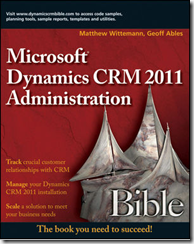
If you are unfamiliar with the book, here it is.

image

Matt Wittemann I know well. To call an MVP a ‘nice guy’ is something of a tautology, given the reason you get the award is for being friendly and sharing knowledge. In Matt’s case though he is really, really friendly, but not in a creepy way. He works at Click Dimensions (who make a really great marketing add-on product for Dynamics CRM) and was the source of my LinkedIn integration post earlier this year.

Geoff Ables, the other author of the book I do not know.

Other than a beer at summit if I am reasonably complimentary, I will receive no compensation for this review other than keeping the review book.

Overview of the Book

The book is a sizeable tome weighing in at 778 pages and, given you can get it on Amazon for US$30 or on kindle for $23 that is great value.

The first thing I noticed was the foreward. Most forewards I ignore but this one was written by Paul Greenberg. Paul wrote ‘CRM at the Speed of Light’ back in 2001; a seminal work on CRM as a philosophy and a technology. The book coined the term ‘xRM’ ten years ago! It should take pride of place on any CRM worker’s desk. It would on mine if someone had not stolen it.

If you think I talk up Matt, you should see what the ‘godfather of CRM’ says about him (all of it true). Paul also gives the book his seal of approval, which is enough for me to read on. He implies that the book will assist in ensuring a successful implementation of Dynamics CRM and I tend to agree with him.

Structure of the Book

The book is divided into nine parts:

  1. Laying a Solid Foundation
  2. Installing Dynamics CRM
  3. Administering Dynamics CRM
  4. Using Microsoft Dynamics CRM
  5. Customizing Dynamics CRM Through the User Interface
  6. Customizing Dynamics CRM with Custom Code
  7. Visualizing Your Dynamics CRM Data with Charts, Reports and Dashboards
  8. Extending and Integrating Dynamics CRM
  9. Appendixes (Integration with SharePoint 2010, Accessing and Using Online Resources)

This is, in my opinion, a good taxonomy as it reflects the tasks which one encounters when implementing and working with the product. For example, if I have been thrown at a CRM project which has been installed and ready to configure, it is pretty easy to work out that chapters 1, 3, 4 and 5 are a good place to start; if I am looking to integrate CRM with another system, chapter 8 suggests it is a good place to go.

Part 1: Laying a Solid Foundation

Nice work Matt and Geoff! This section is a ‘Whitman’s Sampler Tour’ (no surname pun intended) of the product. They cover aspects such as:

  • Using CRM to manage complex relationships (I am working with a customer using ACT! at the moment which is a great product to see how Dynamics CRM handles complex relationships so well)
  • Where CRM stops and ERP begins (an often confused area)
  • Common terminology of Dynamics CRM (e.g. what is the difference between a contact, lead, opportunity and account?)
  • Unique differentiators of Dynamics CRM, relative to its competitors
  • Customising and extending CRM
  • A framework for development and implementation
  • What’s new in CRM 2011
  • The differences in the deployment options (advantages and disadvantages)
  • System requirements

It is almost impossible to work with Dynamics CRM or design it correctly without the knowledge in this part. If you are a client, working with a Microsoft partner, and you want to have enough knowledge to keep them honest, this section is worth its weight in gold. Being able to say stuff like “rather than create a series of web pages to manage the approval process, why don’t we use dialogs and child workflows?” or “rather than implement a series of complex jscripts to manage the visibility of fields on the form, why don’t we create custom forms for the different user groups?” will let the consultant know you are not to be trifled with.

Part 2: Installing Dynamics CRM

The title explains it well. Aspects covered include:

  • Planning the installation (goals for CRM, integration points, infrastructure in place)
  • Installing the CRM server (through the next button, via script etc.)
  • Upgrading the server
  • Installing other common components (e-mail router, Outlook client etc.)
  • Setting up internet-facing deployment and claims-based authentication

A good overview of the elements involved. Would I do an enterprise deployment armed with just this book? Not a chance but, again, a great overview so a client can speak with authority to an expert on the subject. Also a good ‘sanity check’ if you are installing a small deployment and you want to make sure you have covered off the essentials.

Part 3: Administering Dynamics CRM

Part three begins where part two left off, setting up those post-installation system settings and some best practices. Aspects include:

  • Best practices (configuring a backup administrator, backing up)
  • Setting system settings
  • Setting up security (a very complex beast relative to CRM 4)
  • Licensing (this is quite light and needs supplementing now that the licensing model has been released)
  • Setting up users
  • Using the Deployment Manager (Product key, server management, organisation management)
  • Data migration and enriching
  • Data de-duplication
  • CRM maintenance (updates, backups, monitoring resources, server and client optimisation
  • Troubleshooting CRM (turning on developer errors, enable tracing etc.)

This part is an excellent guide for essential system maintenance to keep an existing system ‘ticking along’ and, if you are not changing the system in any way through configuration, this is as far as you need to go in the book because the rest of the book is focussed on how the system is used and how to extend its functionality.

Part 4: Using Microsoft Dynamics CRM

This section is essential reading for staff looking to support the out of the box features of the product. Aspects include:

  • How to navigate the interface
  • Record ownership and security
  • Activity management (and a warning about the hidden nasties of working with them under the covers)
  • Queues
  • E-mail templates
  • Record merging
  • Mobile devices
  • CRM Outlook client (including the new features of the massively improved 2011 client)
  • Sales functions (leads, opportunities, quotes, orders, invoices etc.)
  • Marketing functions (campaigns, marketing list)
  • Service functions (cases, contracts, service scheduling)

This section is not designed to be a definitive guide to CRM functionality but more of a high level overview. So, for example, support staff can speak sensibly on the product when dealing with queries. If you are looking for a user deep dive, this one might do the job, although I have not got a copy to review (hint, hint Winking smile).

Part 5: Customizing Dynamics CRM Through the User Interface

This is where I do most of my work; configuring the system through the user interface. As the book says you can get 90% of where you need to be through the front end configuration tools without sacrificing a single curly brace or semi-colon. Aspects include:

  • Data enrichment (a strange place to have this section in my opinion)
  • Mail merging with Microsoft Word (also unusual since this has not a lot to do with configuring the system)
  • SharePoint integration and document management (a little more at home in this chapter)
  • Solution management
  • Entity configuration and custom entity creation
  • Processes (the new name for workflows and dialogs)

A great section for laying the foundation for configuration. If you are a small company working with Dynamics CRM and someone on staff wants to be the designated ‘developer’ for the system but they have no coding experience, this is a great place to start as it will teach them how to get started and exactly how far they can go before getting a coder in.

Part 6: Customizing Dynamics CRM with Custom Code

Starting where the previous section ends, this part talks about how the product can be enhanced through code. Again there are some curious entries in here but, to give an idea of how the system can be altered the section does a good job. Aspects in the section include:

  • Setting up option sets (more at home in the previous section in my opinion and no mention of global option sets that I can see)
  • Setting up queues (again, as this is codeless I would be inclined to have this in an earlier section)
  • Setting up mobile express (codeless)
  • Managing connection roles and relationship roles (very good that the two were mentioned and the difference highlighted. Also codeless and, therefore, probably belong in an earlier section)
  • Extending CRM (forms, dashboards and processes)
  • Development options (great when you know the functionality you want but you are not sure how to implement it)
  • Setting up development and testing environments
  • Client-side customizations (including a great overview of working with jscript and the CRM form events and some sample code)
  • Server-side customizations (a great attempt to do a high level summary of a complex set of development tools, including some sample code and a walkthrough of registering a plugin. It also taught me what a REST endpoint is in language I understood)
  • Connecting to Azure
  • Building workflow extensions

Other than starting with a bunch of stuff which involves no code whatsoever, the parts which did talk about code are a great ‘101’ for client and server-side coding in CRM. This section will not make you an elite coder for CRM but it will whet your appetite on what can be done, again, perfect when discussing a vision of functionality for the system.

Part 7: Visualizing Your Dynamics CRM Data with Charts, Reports, and Dashboards

An area I am passionate about. If you are going to spend all this time setting up a system to centrally capture information, make sure you and your users have a way to extract it in a meaningful way. The section covers:

  • Advanced Find and views
  • Report wizard (my least favourite tool)
  • Using Excel as a BI Tool (my most favourite tool)
  • Charts
  • Dashboards
  • SSRS Reports (including a walkthrough for creating a custom report and report security)
  • Fetch

A great summary of the reporting options of the product. Combined with my seven ages of CRM reporting article, you should have an excellent idea of how the information you need to get to can be extracted and presented.

Part 8: Extending and Integrating Dynamics CRM

A very high level review of how to approach having other systems talk to Dynamics CRM. Aspects covered include:

  • Integration points in the product
  • Planning the integration
  • Data movement considerations
  • Best practices for migration and integration (including a handy chart to suggest which tools are best for which scenarios)
  • A section of widely used integration tools such as Scribe Insight and Pervasive Data Integrator
  • Web site integration
  • Using Add-ons (including reviews of some usual suspects such as Data2CRM, CWR Mobility and Experlogix)
  • Exploring xRM (in other words, managing business processes outside of traditional sales, marketing and services. This includes a walkthrough of an HR scenario and how CRM could help)

Again this chapter is not designed to make the reader an expert but simply to know the essentials and to make the reader aware of some of the commonly used tools in the market. The explanation of the widely mis-used ‘xRM’ is also straightforward and easy to follow.

Part 9: Appendixes

This section talks at advanced SharePoint integration and provides a table of online resources. The table of web links is a collection of the authors’ favourite CRM administrator and third-party tool links. Worthwhile and, hopefully, they will stay active.

The SharePoint section is very interesting as it gives an overview of common integration points between the products with some common examples. If this is on the cards for your CRM implementation, this is definitely worth a look.

Conclusions

If you know someone who is about to take on the administration of a CRM in the new year, this is a great stocking filler (and at 750+ pages it better be a big stocking). The book is specifically written to give an administrator enough knowledge to do their job and enough to ensure the others they need to interact with (e.g. consultants) are doing theirs.

My only complaint is, as is inevitable with such a book, there are some things which are out of date. The first, and most obvious, are the screenshots which are taken from the pre-released version. I expect this was all the authors had to work with at the time of writing. Fortunately not a lot changed from pre-release to production, so this should not distract in any significant way from the usability of the book. Also, the information about licensing is a little dated, referring to enterprise and professional licensing and not mentioning the ESS license. Again, I imagine this was a function of timing. Given licensing is one small aspect of this very large book this is not a big deal (here is the definitive licensing guide if you are interested).

Overall a really well crafted book. Where I see this book having its ‘sweet spot’ is with smaller implementations (either on-premise or online) who have one person being a ‘many hats’ administrator i.e. someone who manages security, users, configuration and needs to work with a Microsoft partner or customiser. I guarantee you, if you are such an administrator, buying this book will be a great investment the next time someone from the business says ‘how could we make CRM do this…?’

Saturday, December 10, 2011

Moving To The Cloud Part One: Office 365

What do you do when you have a laptop full of e-mail, historical data, and photos and are constantly annoyed you have to haul the laptop around to access stuff? Move to the cloud.

This blog is a bit of a departure from the CRM stuff but, I imagine, talks about a problem many of us face. I am making notes as I go down this path (and there are quite a few of them) so I expect this to be a multi-part blog.

The Problem

I have a laptop with a 12G PST file comprising of about 12 years of accumulated e-mail. I also have about 35G of data (excluding stuff I could easily ‘regenerate’ such as music and movies).

To back up, the theory goes that, on the weekend, I hook up my laptop to my media player and xxcopy the hard drive contents. Not the most elegant solution but it would work, if I ever got around to actually doing the backup. Also, I am known at work as ‘that guy that travels with two laptops’. Why? Because when I travel interstate I want to catch up on all things CRM and most of this is set up to happen through Outlook on my personal laptop. This includes emails, subscribed distribution lists, RSS feeds and twitter feeds (thanks to TwInbox). It all feeds into the PST file for centralisation and easy searching.

So my goal is to:

  • eliminate the need to backup or, at least, automate it
  • give me an easy way to read and process e-mails/RSS feeds and tweets while away from home without carrying an extra laptop

Note that what I mean by ‘processing’ is reading e-mails, filing them in a folder, setting myself appointments and tasks resulting from them and so on. So while I can read my e-mails on pretty much any internet-enabled device e.g. an iPad or an Android slate, this is not productive for me and not practical as a solution. Outlook is so much more than an e-mail client.

Looking To The Cloud

Microsoft are making a bit of noise about Office 365 at the moment so I thought I would look into it. Essentially for a per user per month fee you get:

  • Online collaboration via SharePoint (10G +500M*# of users of storage)
  • Online meetings and communication via Lync (at a very high level, think of it as a corporate version of Live Messenger crossed with a softphone)
  • An online version of Exchange (25G of storage)

For my e-mail the last point was the important one. With an online version of Exchange you also get the Outlook Web Access client (OWA) which is a pretty good approximation of Outlook online. OWA would be sufficient for my needs. It would show all my Outlook folders, let me drag and drop emails and let me create Tasks and Appointments which would come back to my laptop when I was back at home. What’s more, my 12G PST is within the storage limits and, hopefully, give me growth for another 12 years.

So what does Office 365 cost? Well, according to the US site $6 per user per month for the simplest plan.

image

PLEASE NOTE: I signed up for the P1 plan despite strong suggestions from fellow MVPs to go with the Enterprise E1 plan. Evaluate the differences before signing up and take note you cannot move from a P1 to an E1 if you change your mind later.

Signing Up And The Australian Complication

I thought this is sufficiently low cost to give it a try. Being a good Microsoft citizen, this is the process I followed:

  1. Go to www.bing.com
  2. Type in “Office 365”
  3. Click the first result link
  4. Click the ‘Buy’ button
  5. Follow the steps

Where this process comes unstuck is when you select the country. There is a long list of countries available but Australia is not one of them. Confused, I consulted the FAQ.

image

So, by rights, Australia should be there. Unsure what to do I clicked ‘United States’ figuring I would either change it later or delete the account and start again one I figured out what was going on. This turned out to be a bad choice as it eventually asks for a US address.

The problem is you cannot officially sign up to Office 365 for Australia via the US web site (which is the one Bing sends you to). You have to go to the Australian equivalent site (which, ironically, Google sends you to from the outset when you type “Office 365”).

The next problem is, despite the black and white claim of global pricing, Australians pay over 30% more for their Office 365.

image

While the reasons are not completely clear, Office 365 is provided through a third party in Australia (namely Telstra) so I am guessing they are adding a little extra to cover their overheads. This flies in the face of the global pricing claim though.

The Unofficial Workaround

The problem I now had was it turned out to not be possible to delete my account or change the country. I could have started again but I wanted to keep my free vanity domain you get when you sign up. I was also a little put out that Australians were paying more for a cloud solution than the rest of the world.

The problem was a lack of a US address. Fortunately my wife has an American Express card and they have a member benefit, courtesy of http://www.myus.com which means card holders get a complimentary US address and reduced shipping rates. The reason for this unusual benefit? A lot of US suppliers flatly refuse to deal with people outside of the USA and will only ship within the USA. This service gets around that.

Wielding my newly found US address and my credit card I signed up at the global rate of $6 per user per month. Can Microsoft or Telstra force me to go through Telstra and spend $7.90 per user per month? Well, by my interpretation, this would be third line forcing which is illegal in Australia.

Even if you do not have an American Express card, you can sign up to myus.com and pay a once-off fee of $10 and get an address. Within six months you will have recouped the difference (6 * ($7.90-$6.00) = $11.40), assuming US$/A$ parity.

Experience So Far

Well I will save that for the next blog, along with a bunch of tips and tricks I have learned along the way for transferring my PST over to Exchange Online and for configuring SharePoint Online but, overall, the experience has been very positive. Assuming Microsoft and Telstra do not kill my account for that little nugget above, I expect to be using Office 365 for the foreseeable future.

Saturday, December 3, 2011

The Interplay of People, Process and Technology

Before I get into the article, Google Analytics is telling me I am not getting as many hits as I used to.

While this may simply be a seasonal thing, I am keen to keep my audience. Therefore, if there is a specific type of article you would like to see or, if you feel I have been dropping the ball of late, let me know. Generally I write one of three types of articles:

  • Codeless tricks for Dynamics CRM
  • Competitive analysis (often directed at salesforce)
  • Thought leadership on CRM in general

Today’s article is in the ‘thought leadership’ camp.

The Processing of Information

There is a reliable model in IT circles when it comes to implementing software into a business which is the model of People, Process and Technology. The idea is that if you are processing information e.g. converting an order into a delivery or going from a lead into a sale, inevitably these three elements will be involved.

Overall it is a pretty good model in that it is understood that all three elements have to be considered for an IT project not to fail. To put it generally:

  • People: who is involved in processing the information?
  • Technology: what systems are being employed in processing the information?
  • Process: How is the information transformed/transferred?

What is often overlooked, and the purpose of today’s blog, is the consideration of their interplay.

Scenario One: The Dreaded Timesheet

A few employers ago, my boss asked me to look at how we could improve the internal process of lodging timesheets. The consultants complained that the process involved multiple handling of emails from the resource manager (the person that assigned them to projects), their calendar and the ERP system where they eventually logged their time. All three elements held basically the same information but none of them were linked, except through the keyboard of the consultant.

The resource manager complained because his calendar, showing all consultants, was not linked to the CRM or ERP system so he had to monitor when deals closed and then assign resources manually. The general manager complained because the numbers in the ERP system of closed deals never matched the resource manager’s calendar of completed work and the CRM system of future deals never matched the resource manager’s calendar of upcoming and assigned work. It was a mess.

As an aside, for those of you not in the consulting game, this situation is nothing new and is pretty much par for the course in most consulting businesses.

I began reviewing the situation and quickly concluded that Dynamics CRM could be used to resolve the situation.

  • When a sales opportunity is closed in Dynamics CRM, a workflow could automatically create a project task for the resource manager
  • The resource manager could assign this to a consultant and it would automatically appear in their Outlook calendar
  • When the work was completed, the consultant could mark the activity as completed and this would then feed into the ERP system via an integration component
  • Everything could be monitored through CRM’s Service Calendar or through SRS reports

An elegant solution and entirely practical. All the resource manager would ever have to do would be to assign jobs to consultants and all a consultant would have to do is complete the work and mark it as such in Outlook. The systems would take care of the rest.

I was so excited about the possibilities, I mentioned the idea to my boss’ boss, the general manager. To my surprise he was lukewarm on the idea of using CRM as the ‘glue’. His response was “let us look at the process first and then we can look at the technology”. Unfortunately, despite lovely process diagrams being created, nothing changed and the business continued to drown in  poor information and overly manual processes. Because so much time was being spent on the manual processes generating inadequate information, there was never any time to improve the situation and, as far as I know, the situation remains the same to this day.

Scenario Two: The Dream System

Another time, the company I worked for was asked to deliver a system, using Dynamics CRM, which met the specifications gathered by a third-party system-agnostic business analyst. We were told it was the system the client’s staff had designed and it was vital to give them what they wanted to guarantee user adoption, no further workshops required. Unfortunately, the consultant involved (who will remain nameless to protect the inexperienced) accepted the challenge and the project horribly failed with budget blowouts and compromised solutions. No-one got what they wanted.

Scenario Three: Consolidating on the One Platform

The final situation was a conversation I had with a client where they loved Dynamics CRM so much they wanted to do everything through it, including their financials and inventory management. Fortunately, I managed to convince them otherwise but it is an excellent example of when you have the CRM hammer how everything looks like a nail. For the client, it did not matter that CRM has no concept of a general ledger or that the accounting department would have to learn a completely new system which would deliver a fraction of the functionality of the incumbent ERP software.

Why Considering Elements In Isolation Never Works

The problem in each of these scenarios is that one of the three elements was being considered without regard to the others (process, people and technology, respectively). This happens a lot and is often why CRM projects fail. Use your favourite search engine to find lists of reasons why CRM projects fail and you will see lists talking about how one or more of the three elements are being ignored.

If you focus on the technology and process but do not ensure the people are equipped and motivated to use the system (through training) user adoption will be compromised.

If you focus on process and people but ignore the technology, the misalignment will lead to expensive development to make the system ‘fit’ blowing out budgets with minimal gain.

If you focus on the people and technology but ignore the process, you risk automating and magnifying inefficiencies or failing to deliver what the business actually needs.

Getting in the Zone

A rough analogy can be drawn to the idea of the head, heart and hands and the idea of being ‘in the zone’; that state of mind, similar to Csikszentmihalyi’s ‘flow’ where productivity is achieved effortlessly.

Hugo Kehr researched this area and came up with the ‘Compensatory Model’. The theory goes that if the head (rationale for an action), heart (personal motivation to perform the action) and hands (perceived ability to perform the action) are aligned, the individual will achieve effortlessly. If they are not, without intervention, achievement will be difficult or impossible. A classic example is a smoker who knows quitting is good for his health (head) and he has the ability to stop (hands) but his heart is not in it. To achieve success will require willpower; it will not be effortless.

In our case, we can consider the process as the head (the logical approach to processing the information), technology as the hands (the tools to enable the processing) and the people as the heart (those performing the action who must be personally motivated).

Reviewing the misalignment through this filter:

If the people are unmotivated e.g. they perceive CRM as unhelpful and merely a ‘big brother’ system, they will be able to achieve the outcome but there will again be frustration and the requirement for willpower.

If the technology is inadequate but the people and the business both agree the outcome is necessary, creativity and problem solving will be used to ‘work around’ the systems e.g. Excel and Access systems will be created.

If there is no process, people with the right resources can achieve the outcome, but there will be frustration and willpower (volitional regulation to use Kehr’s terminology) will have to be employed.

Conclusions

The idea of considering the elements of people, process and technology when implementing an IT solution to help with a business process is a good start but it is not everything. Changing one of the three elements inevitably affects the other two and, often, in subtle ways. Therefore, it is also necessary to consider how all three are linked in the ‘as is’ process, how this will change in the ‘to be’ process and what steps will be necessary to transform from one to the other. Being rigid with one element and expecting the others to fall into place is a recipe for disaster.

The closer all three are aligned, the less frustration there will be with the system and the more consistent the process: business nirvana.